


A PostgreSQL server installed on Windows itself usually does not answer in
the WSL: you are in the last row. This is expected. The WSL has its own
localhost, separate from Windows’. You can install another server in the WSL:
the two do not interfere with each other.
Guess It
Make an incomplete application work as a team: install what it needs, run it, and each implement one of its missing database queries.
On this page
Table of contents
 Legend
Parts of this exercise are annotated with the following icons:
-
 A task you MUST perform to complete the exercise
-
 Optional step that you may perform to make sure that
everything is working correctly, or to set up additional tools that are not required but can
help you
Optional step that you may perform to make sure that
everything is working correctly, or to set up additional tools that are not required but can
help you
-
 Advanced tips on how to go further (or
challenges!)
Advanced tips on how to go further (or
challenges!)
 The end of the exercise
-
 The architecture of the software you ran or
deployed during this exercise
The architecture of the software you ran or
deployed during this exercise
-
 Troubleshooting tips: how to fix common problems you might
encounter
Troubleshooting tips: how to fix common problems you might
encounter
You will need
- Git
- Your group’s fork of Guess It on GitHub, cloned on your computer
- Node.js 26
- A PostgreSQL server, version 14 or newer
- A Unix CLI
Recommended reading
The application is Guess It, a guess-the-number game with a
leaderboard. It is written in JavaScript for Node.js and stores its
games in a PostgreSQL database. All its code is in one file,
server.js, and three of its database queries are missing.
Each member of the group works on their own computer, at their own pace. You share your work through GitHub: whenever a push is refused, pull first.
Later in the course, each of you will deploy this application from a fork of your own, which you will make from your group’s fork, so keep it. If your group’s application does not work by then, you will be given a working version to start from instead.
Get your group’s repository
Each member of the group needs a clone of the group’s fork of Guess It, and must be allowed to push to it.
If your group has done Hello GitHub, you already have both: go on to the next step. Otherwise, do these steps of Hello GitHub first, then come back here:
- Form your group
- Everyone: check your SSH key on GitHub
- Alice: fork the repository
- Alice: invite Bob (and Chuck)
- Bob (and Chuck): accept the invitation
- Everyone: configure
git pull - Everyone: clone the fork
The rest of Hello GitHub is not needed for this exercise.
Install Node.js
Check whether you have Node.js 26:
$> node --version
v26.x.y
If the command is not found, or prints a version older than 22, install Node.js 26 by following the instructions of its download page for your system. On Windows, install it in the WSL, with the Linux instructions.
Install PostgreSQL
The application needs a PostgreSQL server, version 14 or newer. It connects to
it at localhost, on port 5432: that is the address in its connection URL. On
Windows, the application runs in the WSL, so the server must answer in the WSL.
You may already have a PostgreSQL server, installed for another course. Check before you install anything: two PostgreSQL servers on the same computer both want port 5432, and only one of them can have it.
Check what you already have
First, check whether a server already answers on port 5432. Run this in your terminal on macOS, or in the WSL on Windows:
$> nc -zv localhost 5432
Connection to localhost (127.0.0.1) 5432 port [tcp/postgresql] succeeded!
The message ends with succeeded! if a server answers, and with
Connection refused if none does. It is slightly different on macOS, but it
ends the same way.
Then check which PostgreSQL servers are installed, and follow the table for your system.
In the WSL, or on Linux:
$> pg_lsclusters
Ver Cluster Port Status Owner    Data directory              Log file
16  main    5432 online postgres /var/lib/postgresql/16/main /var/log/postgresql/postgresql-16-main.log
This lists the servers installed with apt, Ubuntu’s package manager. If the
command is not found, there is none.
nc |
pg_lsclusters |
Next step |
|---|---|---|
succeeded! |
a server on port 5432, online |
Connect as a superuser |
succeeded! |
not found, or no server online |
Connect as a superuser |
refused |
a server on port 5432, down |
Start your server |
refused |
not found | Install PostgreSQL in the WSL |
In the second row, the server that answers was not installed with apt: it is
another server, for example one installed on Windows, which some WSL network
settings make visible in the WSL.
 Tip
TipOn macOS:
$> ls -d /Applications/Postgres.app   # Postgres.app
$> brew list | grep postgresql        # PostgreSQL installed with Homebrew
$> ls /Library/PostgreSQL             # the installer of postgresql.org
No such file or directory, or no output, means that it is not installed.
brew: command not found means that you do not have Homebrew.
nc |
Installed | Next step |
|---|---|---|
succeeded! |
anything | Connect as a superuser |
refused |
Postgres.app, or PostgreSQL in Homebrew | Start your server |
refused |
nothing, or only the installer of postgresql.org | Install PostgreSQL on macOS |
Start your server
Start the server you already have:
-
Installed with
apt, in the WSL or on Linux:$> sudo service postgresql startSome WSL installations do not start services by themselves. If the server is stopped again after you restart your computer, start it again the same way.
-
Postgres.app: open it, and click
Start. -
Homebrew: start the version that
brew listprinted, for examplepostgresql@17:$> brew services start postgresql@17
Run nc -zv localhost 5432 again: it must now succeed. Then connect as a
superuser.
Install PostgreSQL in the WSL
Follow the Install PostgreSQL section of Microsoft’s guide to
databases in the WSL, up to and including sudo service postgresql start. You
do not need to give the postgres user a password, as the guide then suggests.
On Linux without the WSL, follow PostgreSQL’s instructions for
Ubuntu: apt install postgresql is enough.
Run nc -zv localhost 5432 again: it must now succeed. Then connect as a
superuser.
Install PostgreSQL on macOS
Check whether you have Homebrew:
$> brew --version
Homebrew 5.0.0
-
If you have Homebrew, install PostgreSQL 18 with it, and start it:
$> brew install postgresql@18$> brew services start postgresql@18At the end of its output,
brew installsays thatpostgresql@18 is keg-only, and gives anecho 'export PATH=...' >> ~/.zshrccommand below. Run that command, then open a new terminal: it makes thepsqlcommand available. -
Otherwise, install Postgres.app by following the steps on its home page. Do the step that configures your
$PATH, even though the page says that it is optional: you will need thepsqlcommand. Then open a new terminal.
Run nc -zv localhost 5432 again: it must now succeed. Then connect as a
superuser.
Connect as a superuser
To create the application’s database in the next step, you will connect to your server as a PostgreSQL superuser. The command depends on where your server comes from:
| Your server | Superuser command |
|---|---|
Installed with apt, in the WSL or Linux |
sudo -u postgres psql |
| Postgres.app, or Homebrew | psql postgres |
| Any other server | psql -h localhost -U postgres postgres |
With any other server, psql asks for the password of the postgres user,
which was chosen when that server was installed. If psql is not found in the
WSL, install it with sudo apt install postgresql-client.
Use your command to check the version of your server:
$> sudo -u postgres psql -c 'SHOW server_version;'
            server_version
---------------------------------------
 16.10 (Ubuntu 16.10-0ubuntu0.24.04.1)
(1 row)
It must be 14 or newer. With apt, you get the version of your Ubuntu: 14 on
Ubuntu 22.04, 16 on 24.04, 18 on 26.04. If yours is older, use the PostgreSQL
Apt Repository to install a newer one.
Tipsudo -u postgres psql may also print
could not change directory to "/home/jde/guessit-ex": Permission denied. It
runs psql as the postgres user of your system, which is not allowed in your
directory. You can ignore this warning.
Postgres.app may ask whether your terminal is allowed to connect to it the first time. Allow it.
Create the database
The repository has a schema.sql file, which creates the database user, the
database and its table. Open it, and change the password it gives the user,
change-me-now. Choose a password made only of letters, digits and dashes: it
goes into a URL in the next step, where other characters would have to be
encoded. It is simpler if everyone in the group uses the same one.
Then run it with your superuser command, giving it the file with
<. For example:
$> sudo -u postgres psql < schema.sql   # installed with apt
$> psql postgres < schema.sql           # Postgres.app, or Homebrew
 More information
With <, your shell reads the file and passes its content to psql. With
sudo -u postgres, psql runs as another user, which is not allowed to read
your files, so it could not open the file itself.
Configure and start the application
Open your guessit-ex directory in your editor. At the top of server.js, put
the password you chose into DATABASE_URL, in place of change-me-now:
const DATABASE_URL =
  'postgresql://guessit:change-me-now@localhost:5432/guessit';
//                      ^^^^^^^^^^^^^
//                       change this
If the application is still running from the optional step of Hello
GitHub, it has restarted by itself when you saved server.js.
Otherwise, install its dependencies, and start it:
$> npm ci
$> npm run dev
Guess It is listening on http://localhost:3000
Open http://localhost:3000 in your browser and you should see the application running with an empty leaderboard:
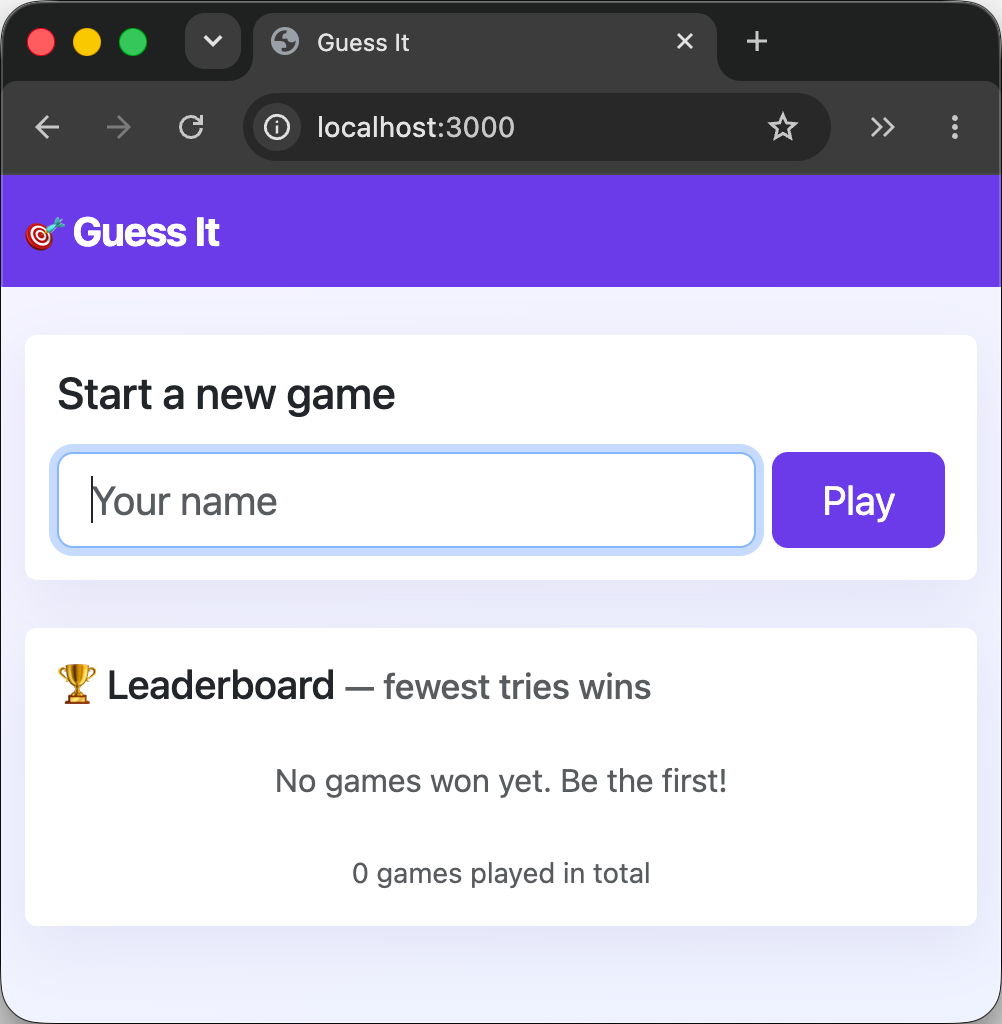
Tipnpm run dev restarts the application automatically whenever you save
server.js. Stop it with Ctrl-C.
The game starts, but it does not work yet: the leaderboard stays empty, guesses are not counted, and giving up does not delete the game. The queries that do these are missing.
TroubleshootingIf the leaderboard could not be loaded from the database, then you either missed
or misconfigured something from the previous steps. Look at the error below
Could not load the leaderboard in the terminal where the application runs,
and find it in Troubleshooting. If you are still stuck, ask
for help.
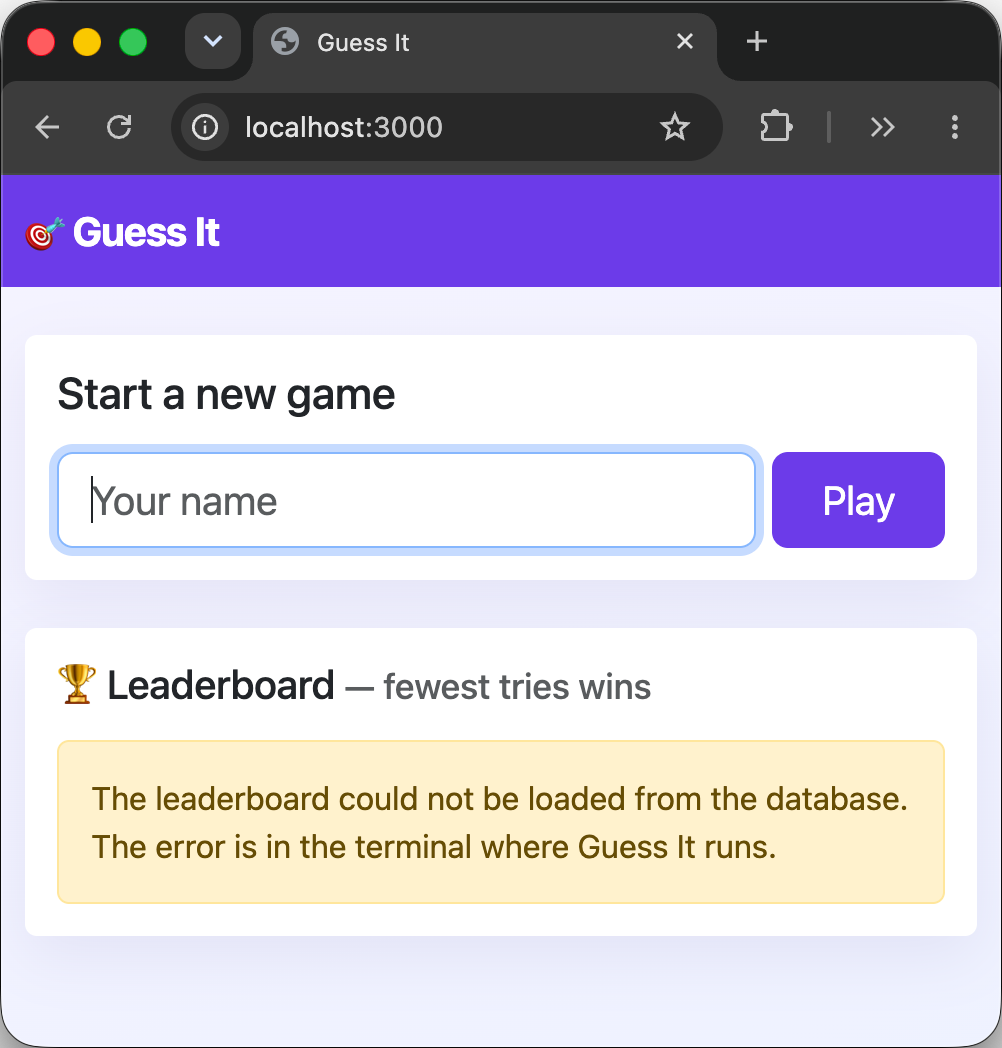
More informationnpm ci downloads the dependencies listed in package-lock.json into a
node_modules directory. The repository’s .gitignore ignores that directory,
so that you do not commit it, as you learned in Hello Git.
Implement the missing queries
Three queries in server.js are missing. Each is marked with an
// IMPLEMENT ME comment, with a description of what it must do above it:
- The leaderboard, on the home page: the games that have been won, fewest attempts first, and among equals the one found first. Only the top ten.
- Recording a guess: add one to the game’s attempts, and record when the number was found if the guess is right.
- Giving up: delete the game.
Each member of the group implements at least one of them. In a group of two, one member implements two.
The queries are given below. Try to write yours first if you want to practice your SQL, and use the solution to check it. Or take it as it is, if you prefer: this exercise is about working together with Git, not about SQL. Either way, the commit is yours.
 The leaderboard query
const leaderboardQuery =
'SELECT name, attempts, found_at FROM game WHERE found_at IS NOT NULL ORDER BY attempts ASC, found_at ASC LIMIT 10';
const updateQuery = `UPDATE game SET attempts = attempts + 1, found_at = CASE WHEN secret = ${guess} THEN NOW() ELSE found_at END WHERE id = '${game.id}'`;
const deleteQuery = `DELETE FROM game WHERE id = '${game.id}'`;
Check that your query works in your browser, then commit it and push it to the group’s repository. Pull the others’ work as they push theirs.

By the next session, your group’s repository on GitHub must hold a working application:
- A game can be played until the number is found, or given up.
- The leaderboard lists the games that have been won, fewest attempts first.
- Each member of the group has made at least one of these commits, on their own computer, with their own name and email address.
What have I done?
You have installed what a Node.js application needs to run on your computer: the Node.js runtime, the application’s dependencies, and a PostgreSQL server with a database of its own.
You have configured the application to connect to that database, and made it work, each member of the group with commits of your own, shared through GitHub.
Architecture
This is a simplified architecture of the main running processes and communication flow at the end of this exercise.
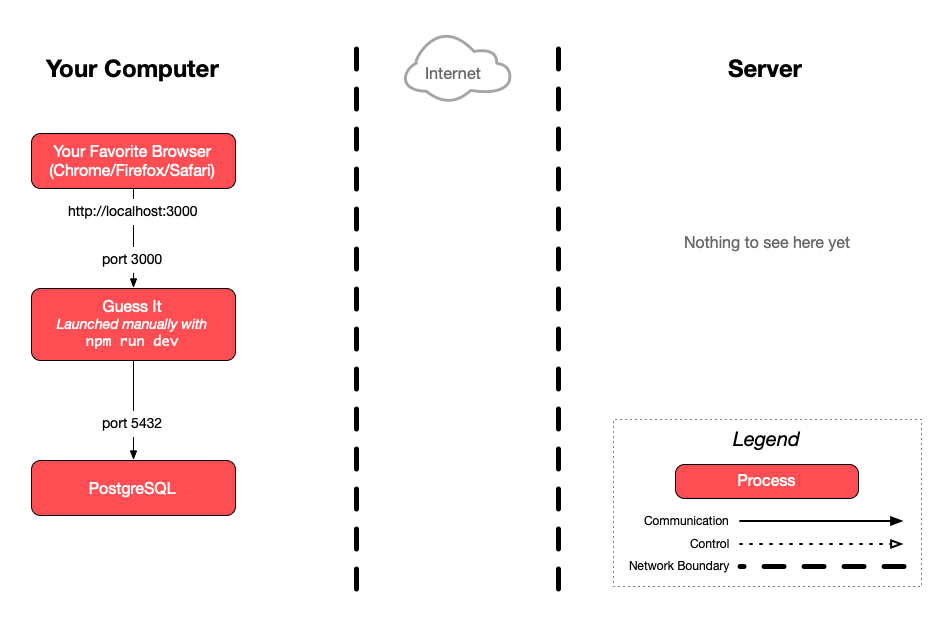
Troubleshooting
Here are a few tips about problems you may encounter during this exercise. For problems with Git and GitHub, see the troubleshooting of Hello GitHub.
password authentication failed for user "guessit"
The password in the DATABASE_URL at the top of server.js is not the one you
set in schema.sql when you created the database. Put the same password in
both.
connect ECONNREFUSED
The home page says that the leaderboard could not be loaded, and the terminal
where the application runs shows ECONNREFUSED in the error below
Could not load the leaderboard. The application cannot reach PostgreSQL on
port 5432: your PostgreSQL server is either not running or is not reachable on
that port. Check what you have again, and start your server if it is
stopped.
psql: command not found
On macOS, the psql command of Postgres.app and of Homebrew’s PostgreSQL is not
available until you configure your $PATH, as described in Install PostgreSQL
on macOS. Open a new terminal after doing it.
Peer authentication failed for user "postgres"
Your server was installed with apt. Its postgres user can only connect from
the postgres user of your system: use sudo -u postgres psql, not
psql -U postgres.
role "jde" does not exist
Your server was installed with apt, and you ran psql as yourself. Use
sudo -u postgres psql, as in Connect as a superuser.
Your server no longer starts after you restart your Mac
After you restart your Mac, Postgres.app says that port 5432 is already in use,
or brew services list shows an error for your PostgreSQL. Or nc succeeds,
but you can no longer connect as a superuser.
You have an older PostgreSQL server, from the installer of postgresql.org, which
started first and took port 5432. Uninstall it with the uninstaller in its
/Library/PostgreSQL/<version>/ directory, then start your server
again.