


This step happens on your local machine. Choose the option that applies to you, and follow the instructions.
Deploy a web application with SFTP
This guide describes how to deploy a Node.js application over SFTP on a server, including installing what it needs to run, such as a PostgreSQL database server.
On this page
Table of contents
 Legend
Parts of this exercise are annotated with the following icons:
-
 A task you MUST perform to complete the exercise
-
 Optional step that you may perform to make sure that
everything is working correctly, or to set up additional tools that are not required but can
help you, or optional extra exercises to explore the topic further
Optional step that you may perform to make sure that
everything is working correctly, or to set up additional tools that are not required but can
help you, or optional extra exercises to explore the topic further
-
 Advanced tips on how to go further (or
challenges!)
Advanced tips on how to go further (or
challenges!)
 The end of the exercise
-
 The architecture of the software you ran or
deployed during this exercise
The architecture of the software you ran or
deployed during this exercise
-
 Troubleshooting tips: how to fix common problems you might
encounter
Troubleshooting tips: how to fix common problems you might
encounter
Make sure you have your own up-to-date Guess It fork
You will deploy Guess It on your own server, with the three queries implemented and its vulnerabilities fixed.
The original Guess It repository, ArchiDep/guessit-ex, has been
updated since it was forked. It now has the three queries, and the fixes for the
vulnerabilities we found during the security analysis. Your
deployment will be accessible on the Internet, where anyone can attack it, so
you must deploy that fixed version.
Everyone deploys and makes changes individually in this and later exercises, so you need to make sure you have your own fork of the repository.

- If you already have your own fork: Make sure your fork is up to date.
- If you do not have your own fork yet: Fork the repository.
- If you have a fork but prefer to start over from a clean state: Fork again.
Make sure your fork is up to date
If your group’s fork belongs to you (it’s under your own GitHub account), you can update it with the latest changes.
Open a terminal and go into your local clone of the fork:
$> cd guessit-ex
$> git status
Make sure you are in a clean state on your main branch, with no uncommitted
changes. If you have uncommitted changes, commit them (or throw them away with
git restore .).
Add the original repository as a second remote, named upstream, fetch it, and
merge its main branch into yours:
$> git remote add upstream git@github.com:ArchiDep/guessit-ex.git

$> git fetch upstream

$> git merge upstream/main
Git will probably report a conflict in server.js: your group and the original
repository both implemented the same queries, and the original repository then
rewrote them to fix the vulnerabilities. Resolve each conflict by keeping the
original repository’s version, the part between ======= and >>>>>>> upstream/main. Then finish the merge and push it:
# Mark the conflict as resolved
$> git add server.js

# Finish the merge
$> git commit

# Push the merge commit to your fork
$> git push
 Tip
TipIf Git reports no conflict, it has already finished the merge by itself: only
git push is left to do.
Fork the repository
If you do not have a fork of your own yet, either fork your group’s repository
after the owner has updated it, or fork the original ArchiDep/guessit-ex
repository, using the Fork button:

Then clone your fork on your computer:
$> cd /path/to/projects
$> git clone git@github.com:YOUR_GITHUB_USERNAME/guessit-ex.git
$> cd guessit-ex
If git clone fails because guessit-ex already exists, see
destination path 'guessit-ex' already exists.
Fork again
If you already have a fork, but prefer to start again from the clean course repository, you can fork it again. The new fork will not have your group’s commits, but it will have the working queries and the fixes of the vulnerabilities.
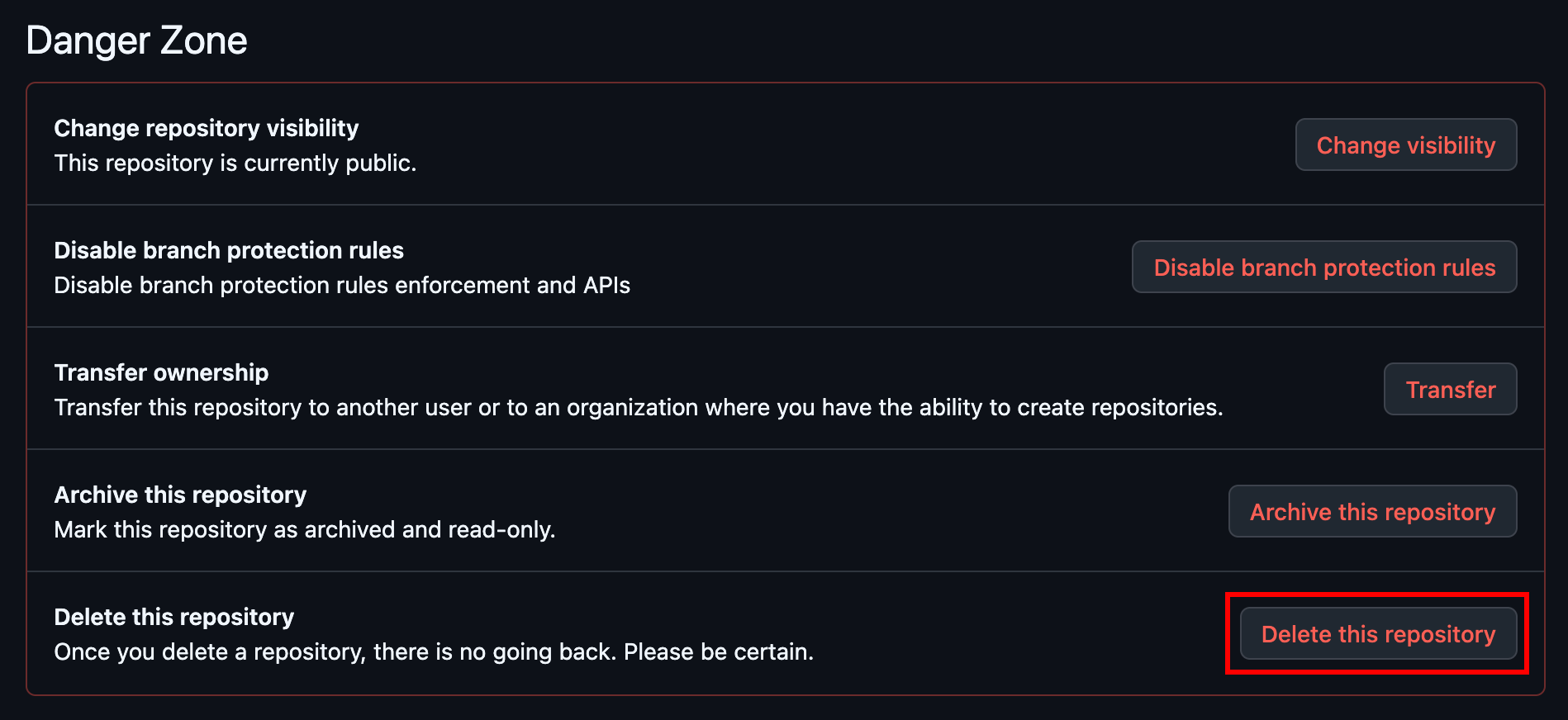
You can delete your own fork on GitHub, in the Danger Zone at the bottom of the repository’s Settings:
You can then fork ArchiDep/guessit-ex again:
Then clone your fork on your computer:
$> cd /path/to/projects
$> git clone git@github.com:YOUR_GITHUB_USERNAME/guessit-ex.git
$> cd guessit-ex
If git clone fails because guessit-ex already exists, see
destination path 'guessit-ex' already exists.
Install PostgreSQL
Connect to your cloud server with SSH for this part.
Update your package lists and install the PostgreSQL database server:
$> sudo apt update

$> sudo apt install postgresql
APT may open a purple full-screen dialog to prompt you to restart some services.
See the troubleshooting section about Daemons using outdated
libraries if necessary.
 More information
Advanced Packaging Tool (APT) is the package manager for Ubuntu (and some other Linux distributions). We will not discuss this tool, but you can read more about it in the installation & upgrading section of the system administration cheatsheet.
APT should automatically start PostgreSQL after installation. You can check this with the following command:
$> sudo systemctl status postgresql
Install Node.js
Guess It needs Node.js. The version that Ubuntu provides is too old, so install Node.js 26 from NodeSource instead:
$> sudo apt-get install -y curl

$> curl -fsSL https://deb.nodesource.com/setup_26.x | sudo -E bash -

$> sudo apt-get install -y nodejs

$> node -v
v26.x.y
What’s running so far?
Installing PostgreSQL started it, while installing Node.js only put its files on the disk. This diagram represents the running processes after the initial steps of the exercise (assuming you still have your SSH connection open in the terminal).
PostgreSQL is installed and running on your server, listening on port 5432. Node.js is installed, but nothing of it runs.
You start the exercise by connecting to your server over SSH. This diagram shows that connection already open. The following steps show what happens when you type commands on the server.
You run sudo apt install postgresql. APT downloads PostgreSQL, installs it, and exits.
Installing PostgreSQL also started it. It listens on port 5432, and on a Unix socket, a file through which programs on the same server can connect to it. Something started it automatically: more on that later in the course.
You install Node.js: you install curl, download and run NodeSource’s setup script with it, which adds their repository, then run sudo apt-get install -y nodejs. APT installs it, and exits. Nothing new stays running: installing a program only puts its files on the disk.
You run node -v. Installed, Node.js is only files on the disk: it runs only when you start it, and here, it stops as soon as it has printed its version.
PostgreSQL has a second listening point which is not a network port. It is a
Unix domain socket. A Unix socket is a special kind of file
through which processes connect to each other, as they would to a TCP port, but
only on the same machine: it is never reachable from the network. Listing it
with ls -l shows the type s, for socket, where a regular file has - and a
directory d.
Since it is a file, it has an owner and permissions, like any other: the
operating system checks them when a process connects. It also tells the server
which user the connecting process runs as. That is how PostgreSQL knows that
sudo -u postgres psql, which connects through this socket, runs as the
postgres user of your server, and lets it connect as the PostgreSQL superuser
without a password. Guess It connects to port 5432 instead, over TCP, with a
password.
Many other programs use Unix sockets to connect to each other on Unix systems,
for example systemctl, the systemd command line tool, and Docker, both of
which we’ll use later in the course.
Install the dependencies
Go back to your local machine for this part. You can open a new local terminal while the other one stays connected to your server.
Install the dependencies in your local copy of the repository, even if you had
already done it. The XSS vulnerability was fixed by adding the mustache
dependency to escape user input, so you need to install it.
# Install dependencies (do this in the "guessit-ex" directory on your computer)
$> npm ci
This reinstalls all dependencies, including the new mustache dependency, in
the node_modules directory. You will upload that directory with the
application, so you do not need to install them again on the server.
Generate a password
The schema.sql file of the original repository creates a guessit user with
the password change-me-now. If you have not changed it yet, replace it with a
random password. This command generates one, made of 32 random hexadecimal
digits:
$> openssl rand -hex 16
cc46a7fcd8dd9c0ce9bc6f0aaf63eb3a
A password made only of letters and digits can go into the connection URL of
server.js as it is. Put it in schema.sql, in your copy of the repository, in
place of change-me-now.
Update the configuration
Still in your copy of the repository, on your computer, update the
DATABASE_URL at the top of the server.js file with the password you put in
schema.sql:
const DATABASE_URL =
  'postgresql://guessit:your-secret-password@localhost:5432/guessit';
- The password must be the same as the one in
schema.sql. - The port must be 5432. If you ran PostgreSQL with Docker Desktop on your
computer, your copy of
server.jsmay use port5434. On your server, PostgreSQL listens on its default port,5432.
Both files are now ready for your server: you will upload them as they are.
TipIf your password contains special characters, you must URL-encode it before
putting it in the connection URL of server.js. For example, if your password
is my$ecret, you must replace the $ with %24, so that the connection URL
becomes
const DATABASE_URL = 'postgresql://guessit:my%24ecret@localhost:5432/guessit';
Upload the application
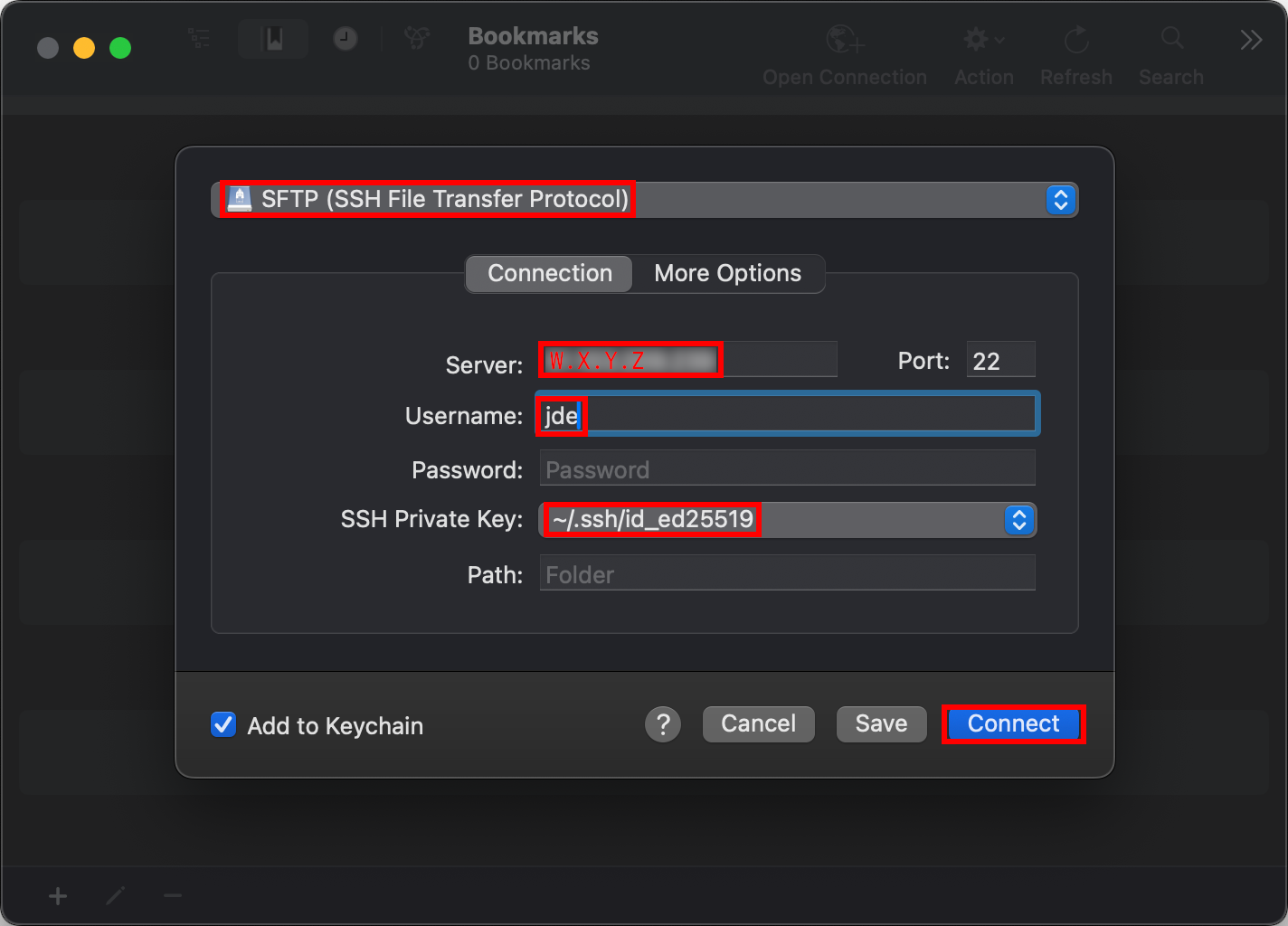
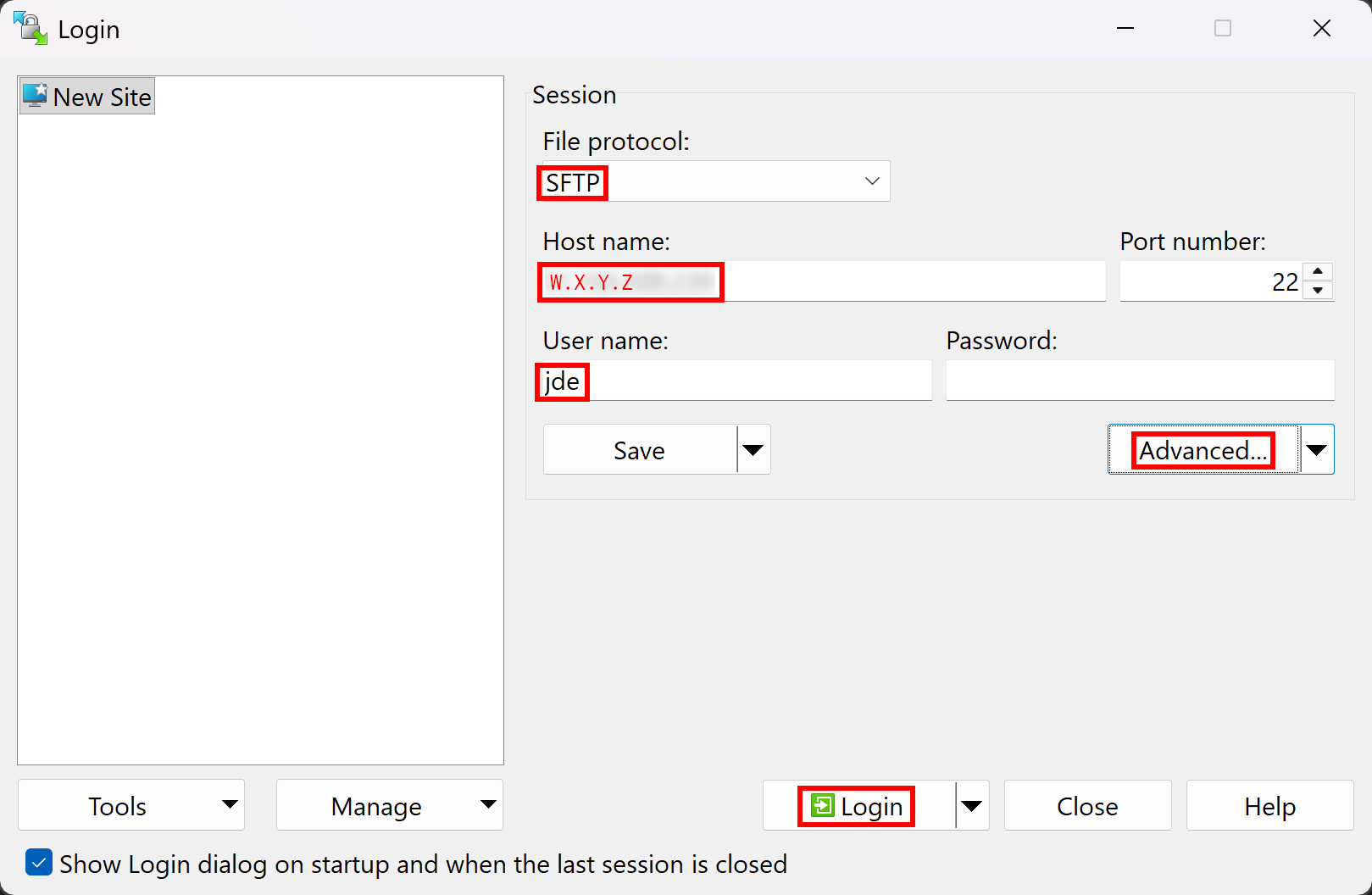
On your local machine, use the SFTP application you set up in Hello SSH to upload the application to your server: WinSCP on Windows, or Cyberduck on macOS. Configure a new connection the same way, with two differences:
- The host is your server’s public IP address (
W.X.Y.Zin the screenshots below). - The username is your Unix username on your server (
jdein the screenshots below).
Your private key is the same. On Windows, use the converted
id_ed25519.ppk key you saved for WinSCP, as described in Give your key to
WinSCP.
On macOS, in Cyberduck’s Open Connection window:
Warning
When you connect for the first time, check the server’s key fingerprint, as you did when you first connected to your server with SSH.
On Windows, in WinSCP’s login window (the key is under Advanced…):
Warning
When you connect for the first time, check the server’s key fingerprint, as you did when you first connected to your server with SSH.
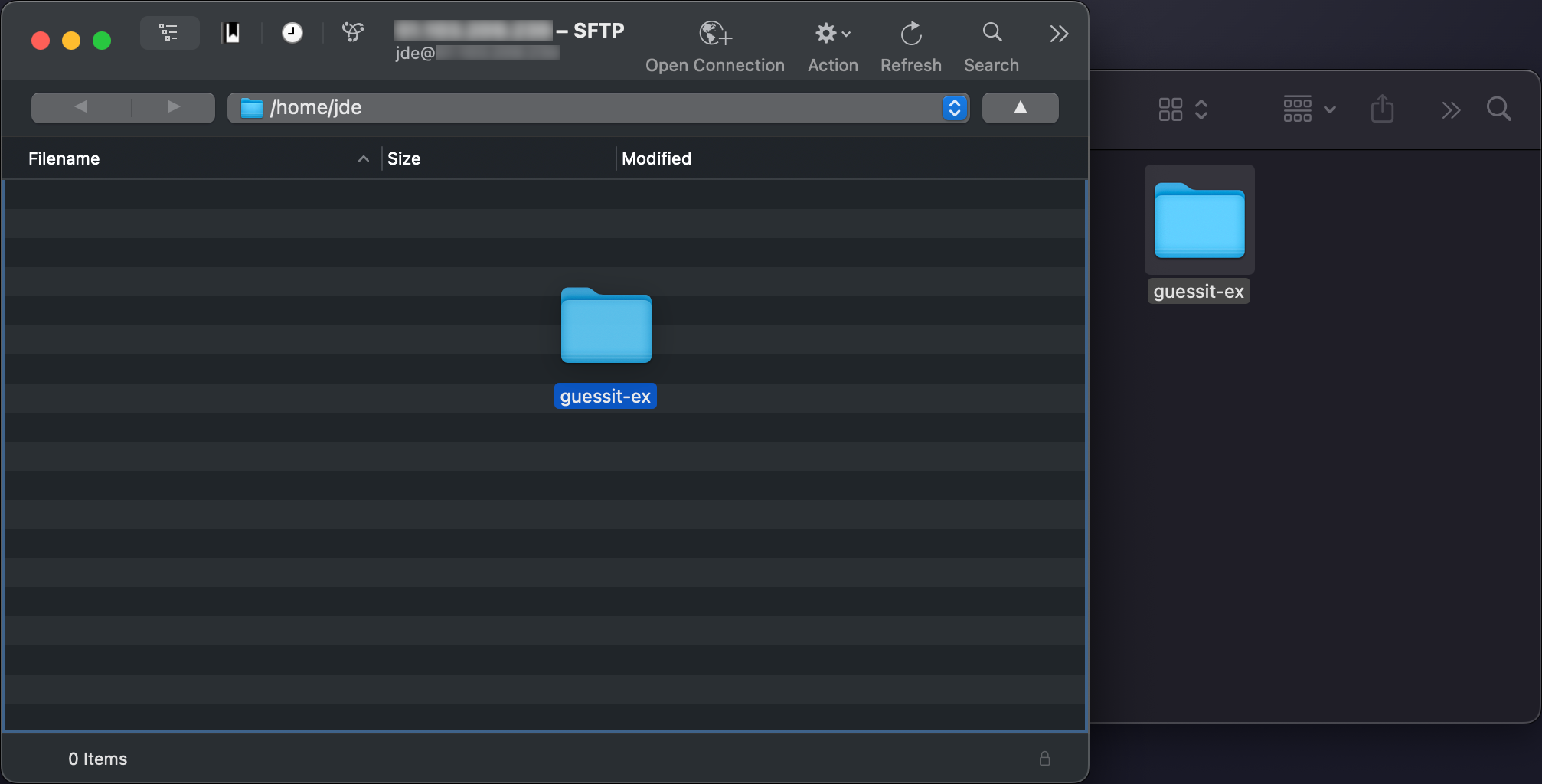
Once you are connected to your server with your SFTP application, copy your
guessit-ex directory into your home directory on the server, /home/jde
(replacing jde with your Unix username), so that it ends up in
/home/jde/guessit-ex. Copy the whole directory, including node_modules: the
application cannot run without its dependencies.
On macOS, drag it from the Finder into Cyberduck’s window:
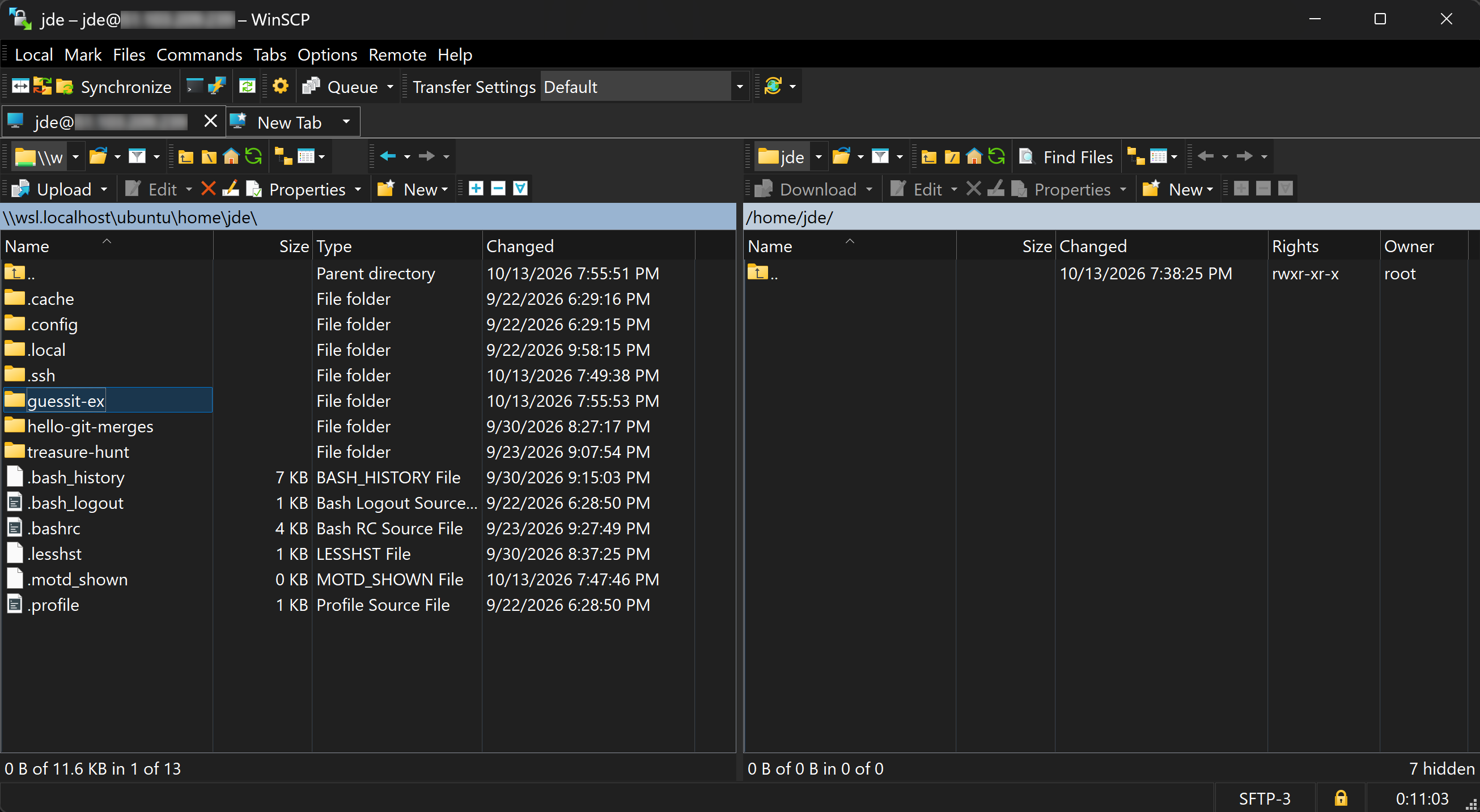
On Windows, your copy of the repository is either in your Windows file system or
in the WSL. If it’s in Windows, open the directory containing guessit-ex in
WinSCP’s local panel. If it’s in the WSL, you can type your WSL home path in the
address bar of WinSCP’s local panel, for example
\\wsl.localhost\Ubuntu\home\jde, replacing jde with your local Linux
username.
You can then simply drag-and-drop the directory from WinSCP’s local panel (on the left) to your home directory on the server (on the right):
Tipnode_modules holds hundreds of small files, so the upload takes a while.
Optional: check that the files have arrived
Go back to your terminal that is still connected to your cloud server over SSH for this part, or reconnect if necessary.
Your SFTP application shows the files on the server, but you can also check from your terminal. List the uploaded directory:
# Make sure you're still connected to your server
$> hostname
jde.archidep.ch

$> ls ~/guessit-ex
README.md  node_modules  package-lock.json  package.json  schema.sql  server.js
Make sure the configuration you prepared on your computer made it too:
$> grep postgresql:// ~/guessit-ex/server.js
It prints the line of the DATABASE_URL: check that it has your password and
port 5432.
node_modules is where an interrupted upload usually shows: some of its
packages are missing. Count them on the server:
$> ls ~/guessit-ex/node_modules | wc -l
Then run ls node_modules | wc -l in your copy of the repository, on your
computer. Both numbers should be the same.
More informationWhen its output goes into a pipe rather than to your terminal,
ls lists one name per line, and wc -l counts the lines: the number of
packages.
How did the files get there?
Your SFTP application opened a second SSH connection to your server, next to your terminal’s. This diagram shows the running processes and network connections between them during the SFTP upload, in parallel with the SSH connection open in your terminal.
Your SFTP client is connected to your server, uploading the application, while your terminal is still connected over SSH.
Your terminal is still connected to your server over SSH, and PostgreSQL is running. You now upload the application from your computer.
You open your SFTP client: WinSCP on Windows, or Cyberduck on macOS.
It connects to port 22, where the SSH server is listening, as your SSH client did: SFTP works over SSH.
The SSH server accepts the connection, and starts a new SSH session for it. Your terminal’s session is still there: the SSH server is not tied up by one connection.
It hands the connection over to the new session, and goes back to waiting on port 22.
This session starts the SFTP server, sftp-server, rather than a shell, because this is an SFTP client connecting, not a human logging in.
You drag the application’s directory onto the server. Its files travel over the connection: server.js, the application…
…schema.sql, the structure of its database…
…and node_modules, the libraries it depends on, copied with it: hundreds of small files, which take a while.
The SFTP server writes the files to the disk of the server, in the directory you chose.
You close your SFTP client: its connection closes, and its session and the SFTP server exit. The SSH server is still waiting on port 22, and your terminal is still connected.
Initialize the database
Go back to your terminal that is still connected to your cloud server over SSH for this part, or reconnect if necessary.
Go into the uploaded directory:
$> cd ~/guessit-ex
Run the project’s SQL file as the PostgreSQL superuser, postgres, to create
the user, the database and its table:
$> sudo -u postgres psql < schema.sql
CREATE ROLE
CREATE DATABASE
You are now connected to database "guessit" as user "postgres".
CREATE TABLE
ALTER TABLE
This uses the redirection operator < to send the contents
of the schema.sql file into the standard input stream of psql. When given
SQL queries on its input stream, psql connects to the PostgreSQL server,
executes them, then stops.
More informationsudo -u postgres runs psql as the postgres user of your server, which is
allowed to connect to PostgreSQL as its superuser, also named postgres. That
user is not allowed to read your files, so it could not open schema.sql
itself: your shell opens it, and passes its content to psql.
It is good practice to create a different database user and password for each application that connects to a database server. That way, if one of the applications is compromised, it cannot access or modify the databases of the other applications.
Notably, you should never connect an application to its database as the
superuser. On your server, only you, the system administrator, can become the
PostgreSQL superuser, with sudo.
Optional: make sure it worked
To make sure everything worked, you can check that the table was created:
$> sudo -u postgres psql -c '\d game' guessit
                          Table "public.game"
   Column   |           Type           | Collation | Nullable | Default
------------+--------------------------+-----------+----------+---------
 id         | text                     |           | not null |
 name       | text                     |           | not null |
 secret     | integer                  |           | not null |
 attempts   | integer                  |           | not null | 0
 found_at   | timestamp with time zone |           |          |
 created_at | timestamp with time zone |           | not null | now()
Indexes:
    "game_pkey" PRIMARY KEY, btree (id)
If you see the table’s schema, it means it was successfully created and
everything went well, since that is the last step of the schema.sql file.
More informationThe command above connects to the guessit database of the PostgreSQL server,
executes \d game, then exits. \d is a PostgreSQL command that shows the
schema of a table.
Run the application
Also in the uploaded directory on the server, start the application, as you did on your computer:
$> npm run dev

> guessit@1.0.0 dev
> node --watch server.js

Guess It is listening on http://localhost:3000
You (and everybody else) should be able to access the application in a browser
at your server’s IP address and port 3000 (e.g. http://W.X.Y.Z:3000).
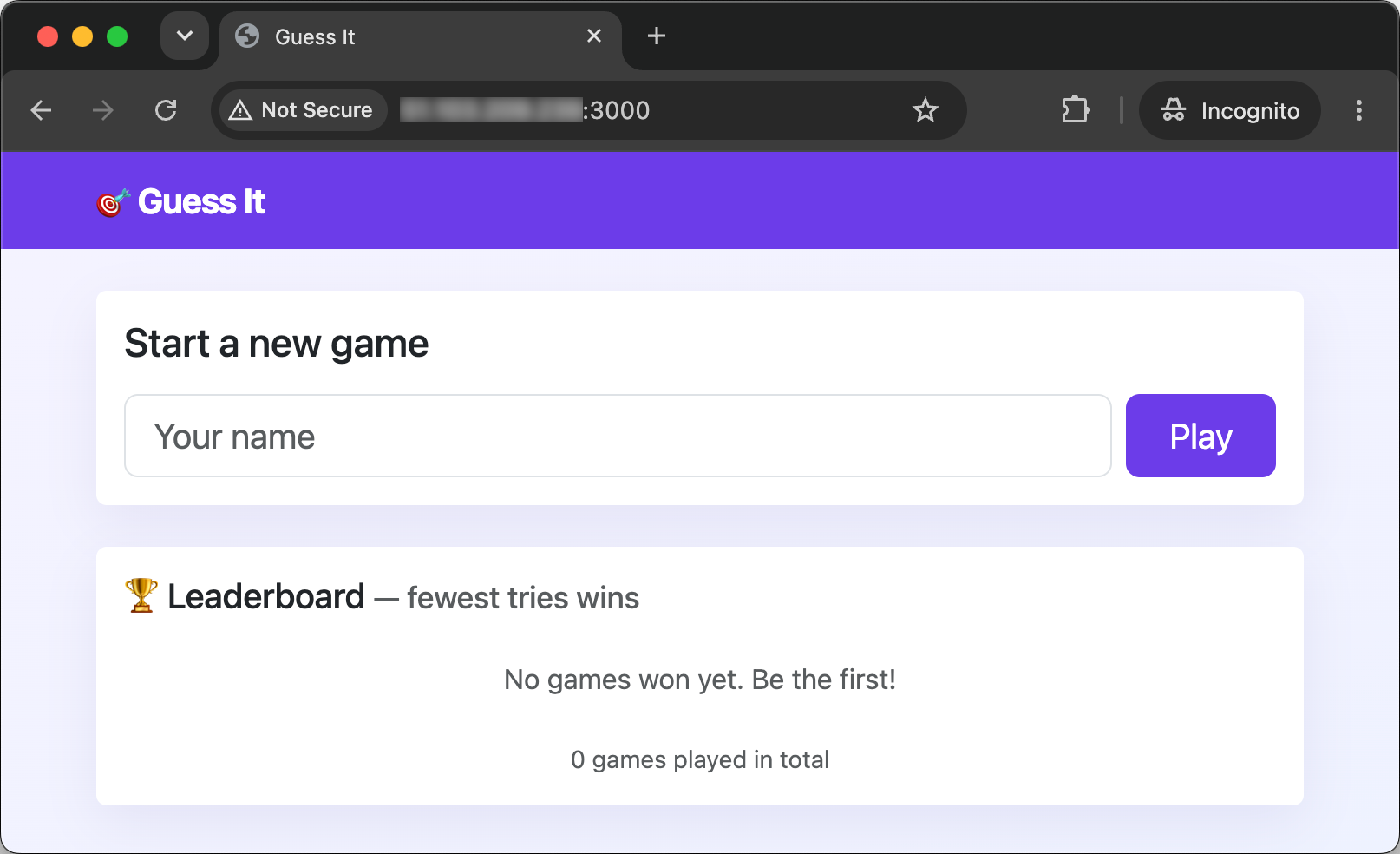
If you can play Guess It, congratulations!  You have deployed a web
application on a server, and made it accessible to anyone on the Internet.
You have deployed a web
application on a server, and made it accessible to anyone on the Internet.
TroubleshootingIf you see Guess It but also see the warning that the leaderbord could not be
loaded from the database, you are not done. Check your terminal for errors. Most
likely, the password in server.js does not match the one in schema.sql. See
password authentication failed for user "guessit".
Optional: see who listens where
In another SSH connection to your server, list the processes listening for TCP
connections with ss:
$> sudo ss -tlpn
State   …   Local Address:Port    …  Process
LISTEN  …         0.0.0.0:22      …   users:(("sshd",…),("systemd",…))
LISTEN  …      127.0.0.54:53      …   users:(("systemd-resolve",…))
LISTEN  …       127.0.0.1:5432    …   users:(("postgres",…))
LISTEN  …   127.0.0.53%lo:53      …   users:(("systemd-resolve",…))
LISTEN  …            [::]:22      …   users:(("sshd",…),("systemd",…))
LISTEN  …               *:3000    …   users:(("node-MainThread",…))
PostgreSQL (postgres) listens on port 5432 of the loopback
address, 127.0.0.1: only programs running on your server can
connect to it. Guess It (node-MainThread, the name Node.js gives its main
thread) listens on port 3000 of *, all the addresses of your server: anyone
who can reach your server can connect to it.
The other lines are the SSH server (sshd), on port 22 of all addresses, and
your server’s own DNS resolver (systemd-resolve), on port 53 of two loopback
addresses.
More informationss needs sudo to show the processes of other users, like postgres. Without
it, the Process column stays empty for them.
What have I done?
You have deployed an application to a server running in the Microsoft Azure cloud. It is now publicly accessible by anyone on the Internet, at your server’s public IP address.
Along the way, you:
- Updated your fork with the fixes of the original repository (or made a new fork).
- Installed PostgreSQL and Node.js on your server.
- Uploaded the application with SFTP, its dependencies included.
- Created its database, configured it, and started it.
Deploying an application means putting it on a computer where its users can reach it, and running it there. Here, that took the same steps as on your own computer: install what the application needs, create its database, configure it, and start it. Only the computer has changed. On an IaaS cloud like Azure, that computer is all the provider gives you: as the administrator, installing what the application needs is your job.
For Guess It, the files are the program. Node.js reads the JavaScript files as
they are, so copying them to the server is enough, as long as Node.js is
installed there. Its dependencies are files too, which is why you could copy
your node_modules directory instead of installing the dependencies on the
server.
PostgreSQL and Guess It are two separate programs, running side by side on your
server. Each is a server of its own, listening on its own port: 5432 for
PostgreSQL, 3000 for Guess It. Guess It is a client of PostgreSQL, and your
browser a client of Guess It. Your browser connects as Alice’s nc did to Bob’s
in the TCP exercise, on the same port 3000, then sends an HTTP request,
the same way you typed one to Google.
A program chooses which of the computer’s addresses it listens on. PostgreSQL only listens on the loopback address, so it cannot be reached from the Internet, only by programs on the same server. Guess It listens on all addresses, which is what makes it public.
The application still has a user of its own in the database, as it had on your computer. The superuser created that user and is not used again. The password is (ideally) random, because nobody has to remember it.
The application runs in your terminal, as a program you started yourself.
Your deployment works, but it has flaws. We will discuss these flaws and improve this deployment, one flaw at a time.
Architecture
This is a simplified architecture of the main running processes and communication flow at the end of this exercise.
Your browser talks to the Guess It application running on your server. Guess It talks to the PostgreSQL database server also running on your server. You started Guess It manually in your SSH session, in a shell running on the server.
Your terminal is still connected to your server over SSH, PostgreSQL is running, and the application’s files are on the server.
You run sudo -u postgres psql < schema.sql. psql starts and connects to PostgreSQL through its Unix socket, as the postgres user.
Your shell opened schema.sql and gave its contents to the standard input of psql, which sends the SQL to PostgreSQL, and waits for it to be run.
PostgreSQL works: it creates the guessit user, its database and its table.
psql has nothing more to send, and exits.
You run npm run dev, as on your computer. Your shell starts Guess It, which listens on port 3000.
You open a browser on your computer.
You type your server’s public IP address and port into it. It connects to port 3000, where Guess It is listening.
It sends an HTTP request for the home page over the connection, and waits for the answer.
Guess It works: Node.js runs its JavaScript code, which needs the leaderboard from the database.
Guess It connects to PostgreSQL on port 5432, with the database URL you configured.
It sends its query over the connection.
PostgreSQL works, running the query, while Guess It waits for the answer.
The rows of the leaderboard travel back to Guess It.
Guess It works again, building the HTML page from the rows.
The page travels back over the connection to your browser, with its stylesheets and scripts.
Your browser works, displaying the page.
Troubleshooting
Here’s a few tips about some problems you may encounter during this exercise.
destination path 'guessit-ex' already exists
git clone refuses to clone your new fork:
$> git clone git@github.com:YOUR_GITHUB_USERNAME/guessit-ex.git
fatal: destination path 'guessit-ex' already exists and is not an empty directory.
You already have a guessit-ex directory where you are cloning, probably your
clone of your group’s repository, or of your previous fork. Git will not clone
into a directory that already has files in it.
Move the old clone out of the way by renaming it, then clone again:
$> mv guessit-ex guessit-ex-old

$> git clone git@github.com:YOUR_GITHUB_USERNAME/guessit-ex.git
Your old clone is still there, in guessit-ex-old, if you need anything from
it.
Daemons using outdated libraries
When you install a package with APT (e.g. PostgreSQL), it may prompt you to reboot and/or to restart outdated daemons (i.e. background services):
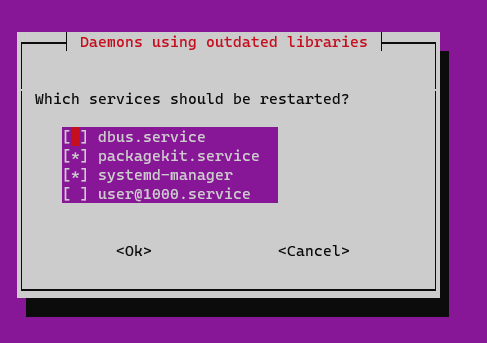
Simply select “Ok” by pressing the Tab key, then press Enter to confirm.
This happens because most recent Linux versions have unattended upgrades: a tool that automatically installs daily security upgrades on your server without human intervention. Sometimes, some of the background services running on your server may need to be restarted for these upgrades to be applied.
Since you are installing a new background service (the PostgreSQL server) which must be started, APT asks whether you want to apply upgrades to other background services by restarting them. Rebooting your server would also have the effect of restarting these services and applying the security upgrades.
My changes to schema.sql or server.js are not on the server
If you notice a mistake in schema.sql or server.js later, once you’ve
already uploaded them to your server, there are several ways to fix it:
- Fix the file on your computer, then upload them again with your SFTP application.
- Your SFTP application can open a remote file in an editor. In WinSCP, right-click the file and choose Edit. In Cyberduck, right-click the file and choose Edit With, then your favorite editor. Make your changes and save the file: the application uploads it again.
- Edit the file directly on the server with
nanoorvim.
Cannot find module
The application stops as soon as it starts, with an error like this one:
$> npm run dev
...
Error: Cannot find module 'mustache'
Require stack:
- /home/jde/guessit-ex/server.js
...
Failed running 'server.js'. Waiting for file changes before restarting...
The node_modules directory on your server is missing, or incomplete. Either
your copy did not have all the dependencies, or the upload did not finish. Run
npm ci in your copy of the repository, on your computer, then upload its
node_modules directory again.
The leaderboard could not be loaded
The home page says that the leaderboard could not be loaded from the database.
Look at the terminal where the application runs, at the error below Could not load the leaderboard:
Could not load the leaderboard: error: password authentication failed for user "guessit"
...
Then find that error below.
password authentication failed for user "guessit"
The application cannot connect to PostgreSQL as the guessit user:
Could not load the leaderboard: error: password authentication failed for user "guessit"
You may have missed the database initialization step. If you did, go back to Initialize the database to create the Guess It database and user.
If you did initialize the database, check that the password in schema.sql is
the same as the one in the DATABASE_URL at the top of server.js.
If it is not, change the password in server.js to match the one in
schema.sql, or change the password in PostgreSQL to match the one in
server.js:
$> sudo -u postgres psql -c "ALTER USER guessit WITH PASSWORD 'the-correct-password';"
ALTER ROLE
The password in server.js must match the one that was defined in PostgreSQL
at the time you ran schema.sql. Changing the password in schema.sql
after that does not change the password in PostgreSQL. This is what the ALTER USER query above does.
connect ECONNREFUSED
The application cannot reach PostgreSQL at all:
Could not load the leaderboard: Error: connect ECONNREFUSED 127.0.0.1:5432
Nothing listens on port 5432 of your server: PostgreSQL is not running. Check its status, and start it if it is stopped:
$> sudo systemctl status postgresql

$> sudo systemctl start postgresql
Also check that the DATABASE_URL in server.js on the server uses port
5432, and not the port you may have used on your computer.
role "guessit" already exists
psql prints these errors when you run schema.sql a second time:
$> sudo -u postgres psql < schema.sql
ERROR:  role "guessit" already exists
ERROR:  database "guessit" already exists
You are now connected to database "guessit" as user "postgres".
ERROR:  relation "game" already exists
ALTER TABLE
The first run created the user, the database and the table. The second run
changed nothing: the user still has the password of the first run, even if you
have changed it in schema.sql since.
Give the guessit user the password of your DATABASE_URL (replacing
my-new-password with that password):
$> sudo -u postgres psql -c "ALTER USER guessit WITH PASSWORD 'my-new-password';"
ALTER ROLE
role "jde" does not exist
psql refuses to connect:
$> psql < schema.sql
psql: error: connection to server on socket "/var/run/postgresql/.s.PGSQL.5432" failed: FATAL:  role "jde" does not exist
You ran psql as yourself. By default, psql connects as the PostgreSQL user
with the same name as your Unix user, and PostgreSQL has no such user. Run it as
the postgres user of your server, with sudo -u postgres psql.
Peer authentication failed for user "postgres"
psql refuses to connect:
$> psql -U postgres < schema.sql
psql: error: connection to server on socket "/var/run/postgresql/.s.PGSQL.5432" failed: FATAL:  Peer authentication failed for user "postgres"
On Ubuntu, the PostgreSQL superuser, postgres, can only connect from the
postgres user of your server. Use sudo -u postgres psql, not
psql -U postgres.